How to Read a Histogram (and Fix Exposure With It)
A histogram is a graph of the tones in your photo: pure black on the left edge, pure white on the right edge, and everything in between. The height of the graph at any point shows how many pixels have that brightness. If the graph climbs against the right or left wall, you are losing detail there. Reading it takes about five seconds once you know what to look for.
Why not trust the camera screen?
The back screen lies. Its brightness changes with the light around you: a photo looks dark in sunshine and bright in a dim room. A histogram does not change. It reports the tones in the file, so it works as a reliable second opinion on any exposure.
The three parts of a histogram
- Left side: shadows. Blacks and very dark tones live here.
- Middle: midtones. Skin, grass and most of what we think of as a "normal" brightness.
- Right side: highlights. Bright skies, white clothing and reflections.
What clipping looks like
A tall spike jammed against the right edge means highlights are clipped: those pixels are pure white and carry no detail. A spike against the left edge means shadows are crushed to pure black. Clipped highlights in a RAW file cannot be restored in editing, so it is better to lower exposure while you shoot.
Not every spike is a mistake. A night scene may rightly need real black, and a studio shot on white paper may need real white. What matters is that you chose it.
A 3-step routine
- Turn on the histogram in playback. Most cameras let you add it to the review screen. Turn on the highlight warning (the "blinkies") too, as a second check.
- Check both walls. Does data slam into the right edge? Are shadows crushed against the left?
- Shift exposure and reshoot. Use exposure compensation: dial minus to move the graph left, plus to move it right. Change in small steps of 1/3 stop.
Reading common scenes
| Scene | What the histogram often looks like | What to do |
|---|---|---|
| Snow or a white beach | Bunched to the right, camera makes it look gray | Add about +1 EV so snow looks white instead of gray |
| Dark stage or night street | Bunched to the left | Use about −1 EV if the camera is brightening too much |
| Backlit portrait | Two humps, with data at both edges | Meter for the face, add fill light or a reflector |
| Overcast day | A narrow hill in the middle | Add contrast in editing, since the light is flat |
Expose to the right
For scenes you plan to edit, brighten the exposure until the histogram nearly touches the right edge without clipping, and lower it later. A brighter file holds less noise in the shadows. Do this with care: the highlights are the edge you must not cross.
Practice drill
Photograph a bright sky scene three times at −1 EV, 0 and +1 EV. Open each histogram and watch the graph slide to the right. After that, photograph a white wall in aperture-priority mode. It will look gray, because the meter aims for middle gray. Add +1.5 EV and compare the two histograms.
What ShotCraft Field Cards adds
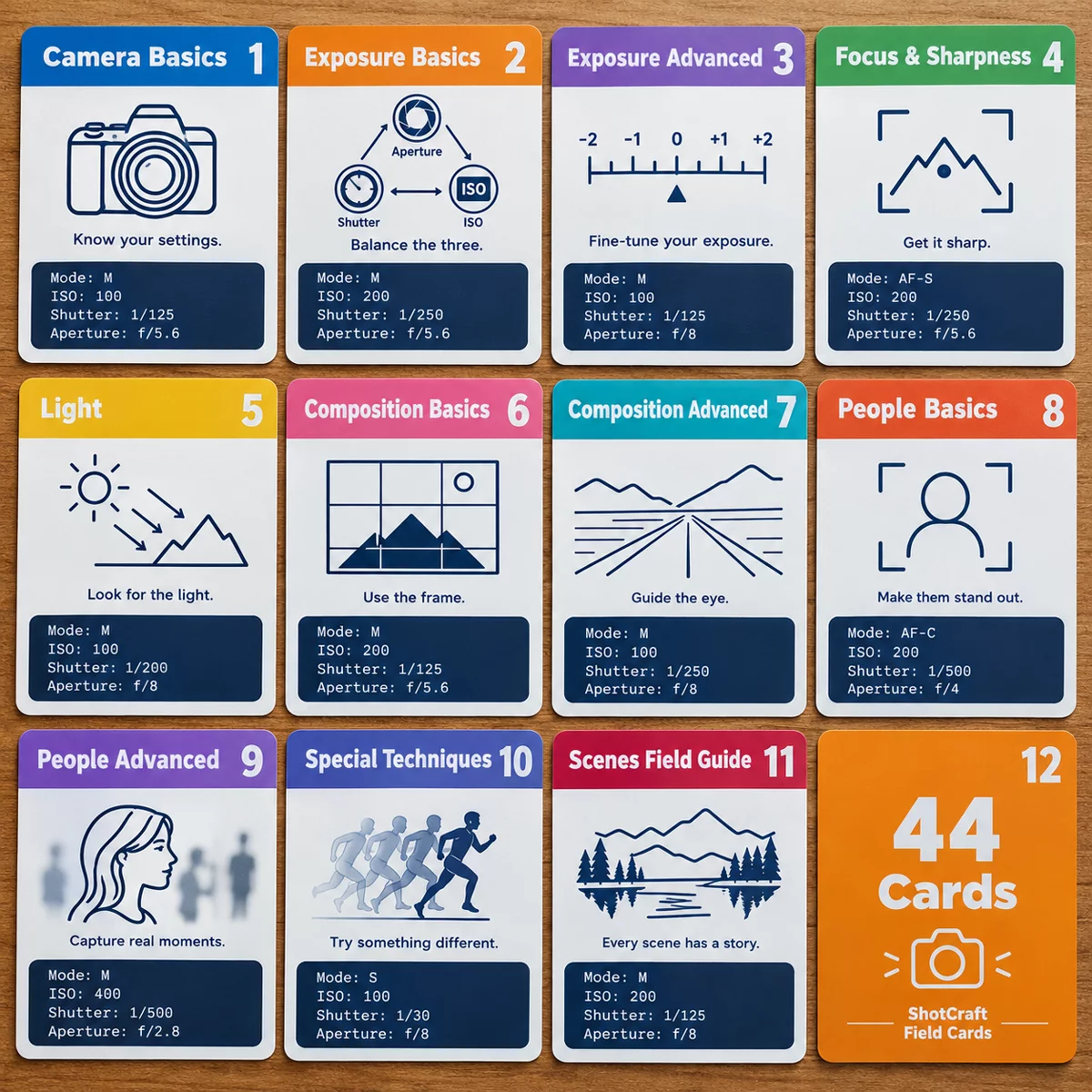
The set includes a Read the Histogram card with the exact five steps, the settings to start from (A/Av mode, f/8, ISO 100, histogram and blinkies on), the common mistakes, and the shoot-it-three-ways drill above. The Exposure Compensation card sits right beside it, so the fix for what you see on the graph is on the next card. Print them at A5 or US Letter, slide them into your camera bag, and the check becomes a habit instead of a hunt through a menu.
Related reading
The histogram makes more sense once you understand what moves it. Start with the exposure triangle to see how aperture, shutter and ISO change brightness. For a short list of settings to check before every shoot, use the camera settings cheat sheet. Light affects the graph too: see golden hour photography and how to expose a silhouette on purpose.